
Monitor
There are two pages to monitor your students’ activities. There is a regular monitoring page and a lesson monitoring page. On the regular monitoring page you can monitor all the activities of your students, including exercises of the lesson but also exercises they do outside the lesson. There is also a lesson monitoring page on which you can specifically monitor your students’ activities for the current.
Lesson monitoring page
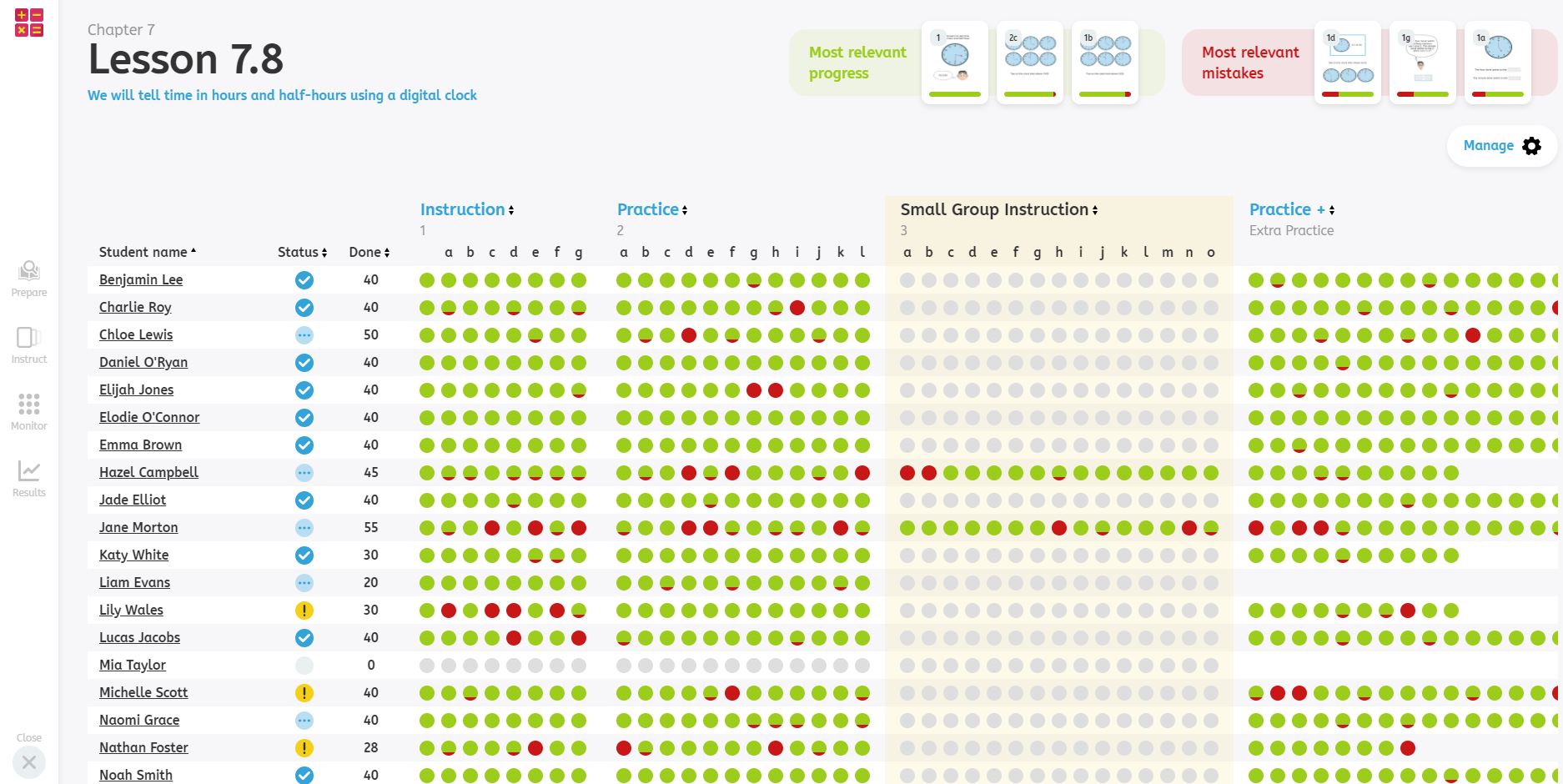
Click on the monitoring button in your lesson plan to get to the monitoring page of the lesson. This page allows you to monitor your students’ progress for the lesson you are teaching. It shows real-time student data structured per set of exercises. Use this page to see which students need extra attention or which students can continue working on their own. You can show this screen to your students. For instance, to evaluate the lesson with them. If you want the page to be anonymous, click on Manage and uncheck the “Show names” box.
While you are teaching your lesson you reach the monitoring page of the lesson on the left side of your dashboard.
Monitoring page
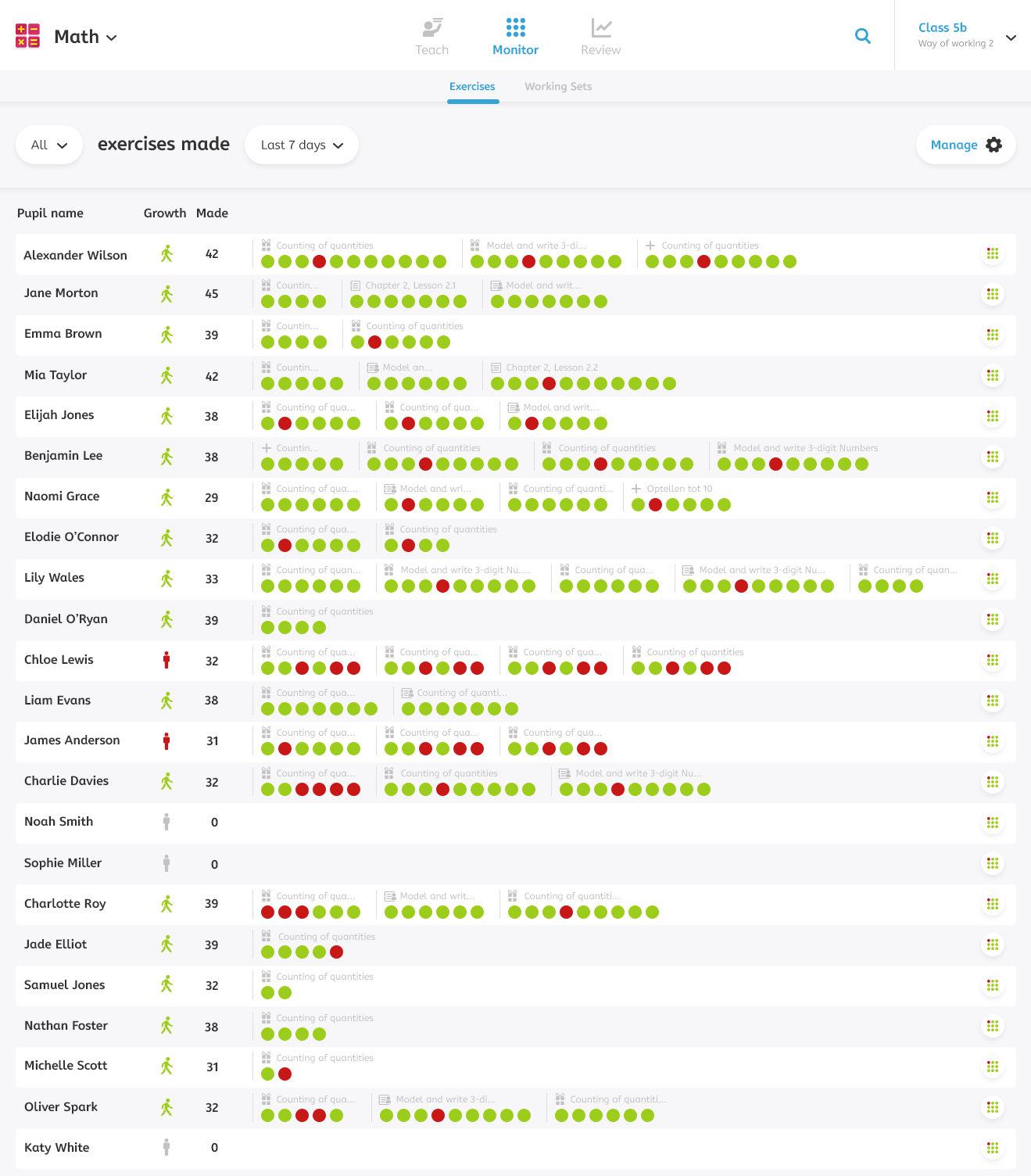
To reach the regular monitoring page, click on the monitoring button in the navigation bar at the top of your dashboard. This page allows you to monitor all your students’ activities for a specific time frame. On the two drop-down menus at the top left of this page, you can filter which activities you want to monitor (e.g. exercises from the lesson or exercises from the working sets) and you can choose time frame (e.g. today, yesterday or this week). You can show this screen to your students. If you want it to be anonymous, click on Manage and uncheck the “Show names” box.
Growth figures
The color of the figures next to the name reflects the progress of the student. A green figure indicates that a student’s ability is growing and a red figure indicates that a student’s ability is decreasing. A grey figure indicates that the growth cannot be determined yet because too little exercises have been done by this student. The figures always indicate the growth of students relative to their own ability level. They give you a quick indication of which students are doing well and which students might need help.
