Review
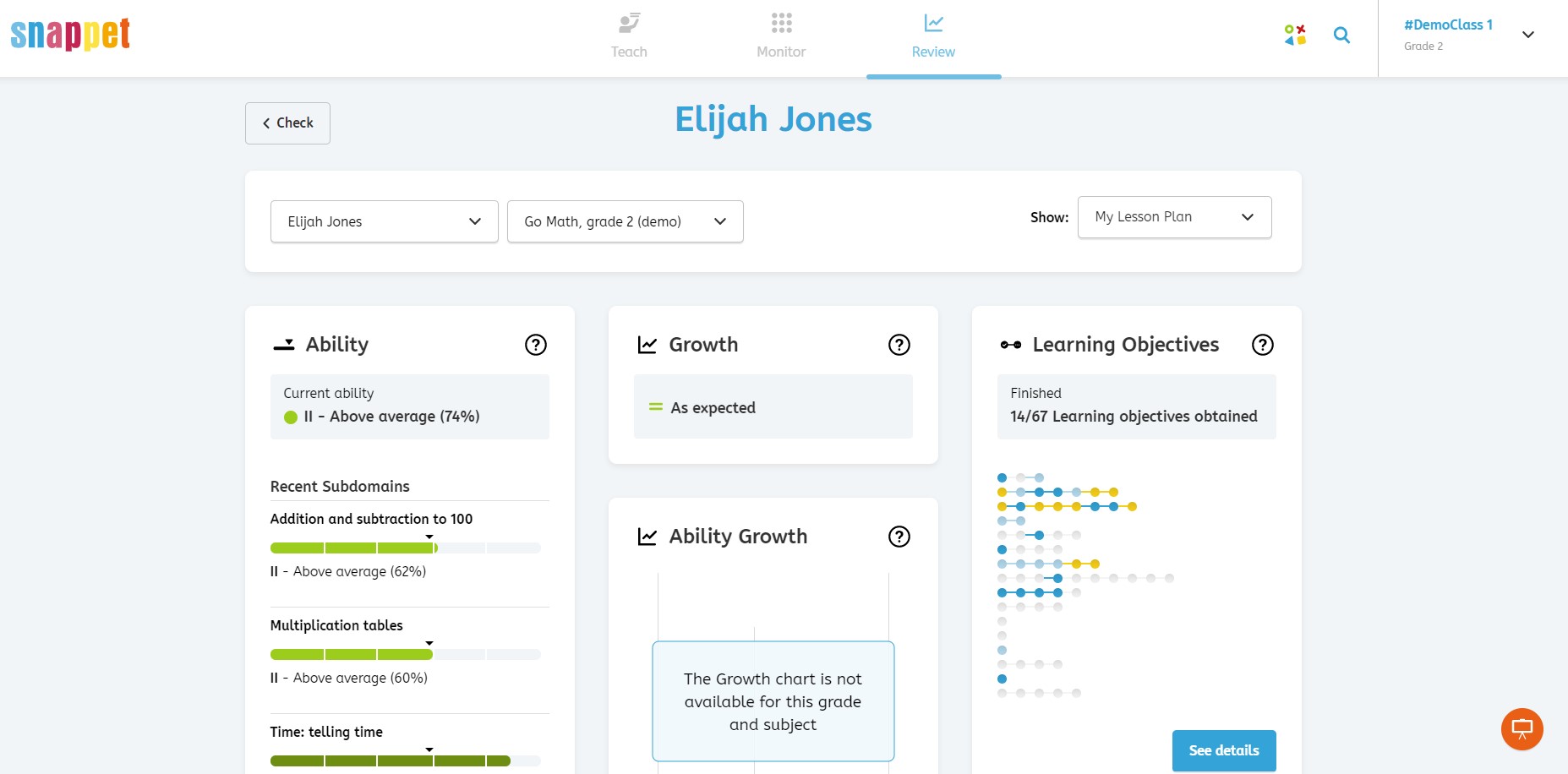
In the review page, you are able to find all the information on the ability of your students. Click on the review button in the navigation bar at the top of your dashboard to go to the review page. The first page gives an overview of all your students, with their ability scores and growth on the selected subject. Click on ‘Show student’ to go to the individual student’s review page. Here you will see the following information:
- Ability: displays the ability level of a student on different subdomains. Click on ‘See details’ to see the scores on all subdomains and the related learning objectives. Per learning objective you can add it to the working set or register a small group instruction. The colored bar displays the percentile score for the student’s ability level relative to the national average ability level.
0% – 19% Far below average (V)
20% – 39% Below average (IV)
40% – 59% Average (III)
60% – 79% Above average (II)
80% – 100% Far above average (I)
- Growth: displays whether a student is growing as expected. When a student is growing as expected, he/she is expected to reach his/her target ability by the end of the school year.
- Learning objectives: displays how a student is doing on each learning objective in your lesson plan.
- Small group instructions: displays the small group instructions you recently registered for that student.
- Working sets: displays which learning objectives you have added to the working set of a student.
Learning objective status
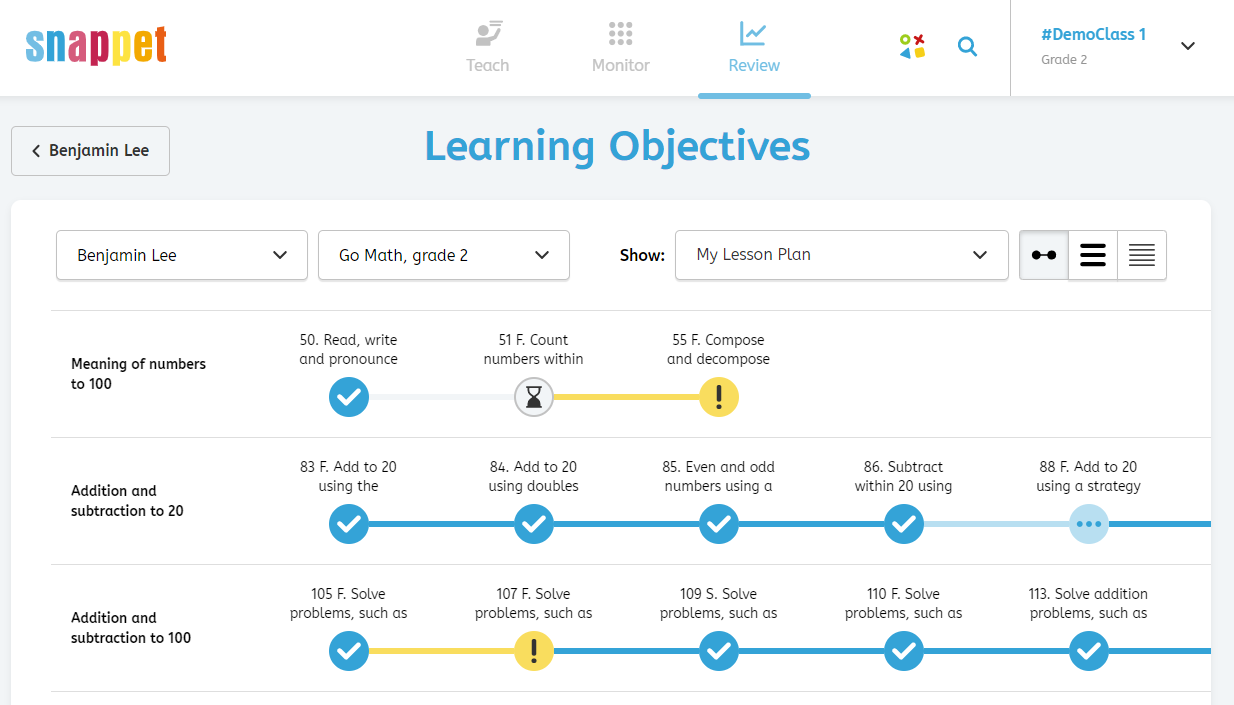
Your students’ learning objective status is displayed on many pages. This status shows how a student is doing on a learning objective. Each student is categorized into one of three categories:
- Growing towards target (light blue): This category indicates that a student is growing towards their target for a learning objective, but has not reached this target yet. The suggestion for this category is to continue practicing independently on the learning objective.
- Target reached (dark blue): This category indicates that a student has reached his/her target on a learning objective. The suggestion for this category is that no specific action is needed on the learning objective.
- Stuck (yellow): This category indicates that a student is stuck below their target level on a learning objective. It indicates that the student might need an intervention before he/she can work independently on this learning objective.
An hourglass indicates that a student has started working on a learning objective, but Snappet needs more information to categorize the student in one of the three categories listed above. The white color indicates that a student has not done any exercises on a learning objective yet.