
Quiz
The quiz allows you to create and send questions to the students. These questions can be answered by your students on their tablets.
The quiz is found at the top right corner of your dashboard, next to the magnifier. Click on the colorful quiz icon to open the quiz. Students are able to access the quiz on their tablets by clicking on the Snappet menu (to be opened by clicking on the student icon at the top right of their screen). They are able to open the quiz by clicking on the same colorful quiz icon as the one that appears on the teacher dashboard.
How does it work?
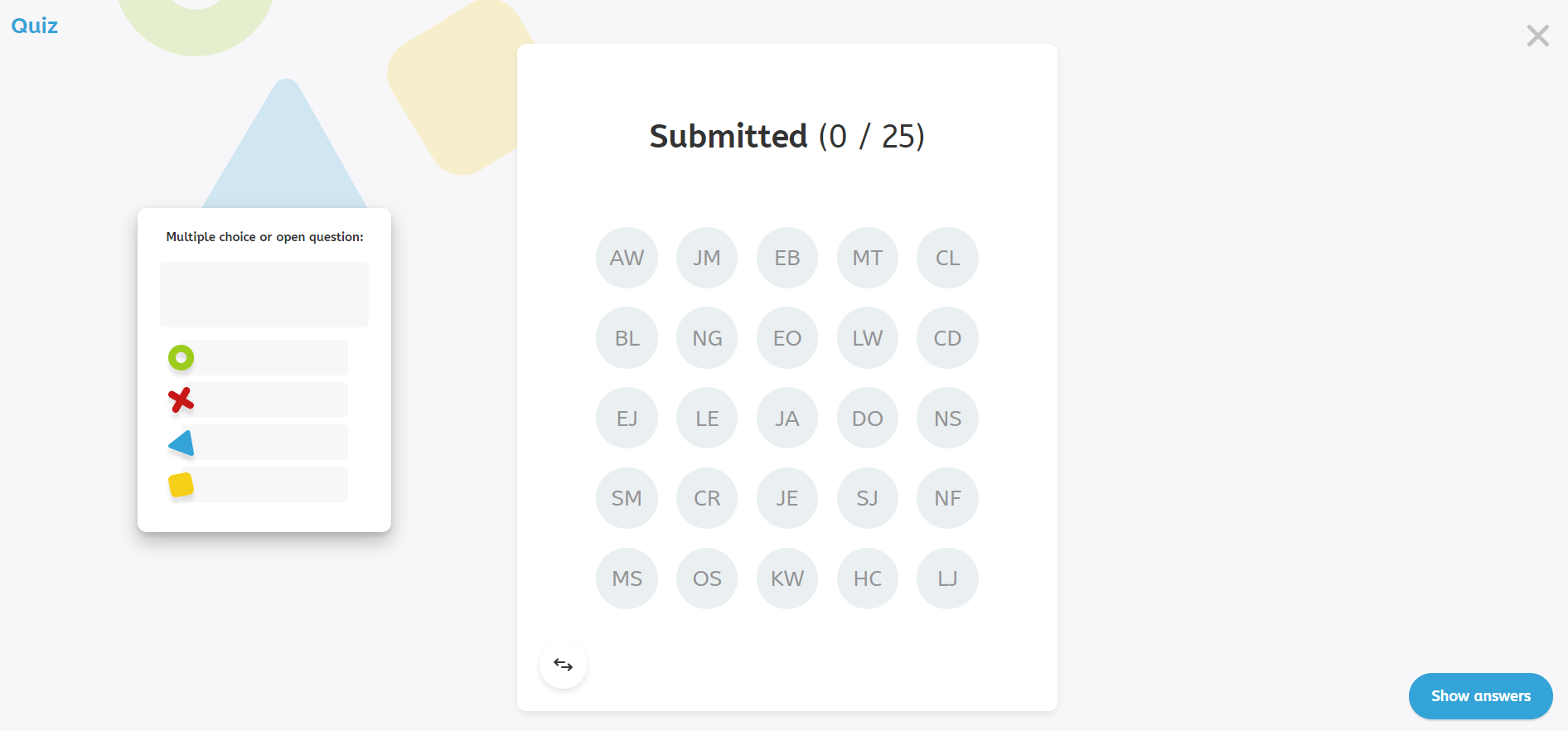
- You can either ask your students an oral question or enter a typed-out question in the question field. You can choose an open or multiple choice question. When you ask your students a multiple choice question, you can fill in the different answer options in the answer fields below the question field.
- In case of a multiple choice question, your students submit their answer by clicking on one of the four answer options (green circle, red cross, blue triangle, yellow square). In case of an open question, your students submit their answers by typing it in the answer field of their tablet and by clicking ‘Submit’.
- In your dashboard you will be able to monitor which students submitted their answer. The initials of your students will be highlighted in blue in the ‘Submitted’-field when they have submitted an answer. Once every student has answered, you can click on ‘Show answers’.
- In case of a multiple choice question, the given answers will be shown in a bar graph. The multiple choice answers are anonymous. In case of an open question, the given answers will be displayed in separate text boxes for each student. The initials at the bottom of each text box shows you which answer has been submitted by which student.
The quiz in the dashboard (without answers)
The quiz in the dashboard (with answers)

The quiz in the student app

