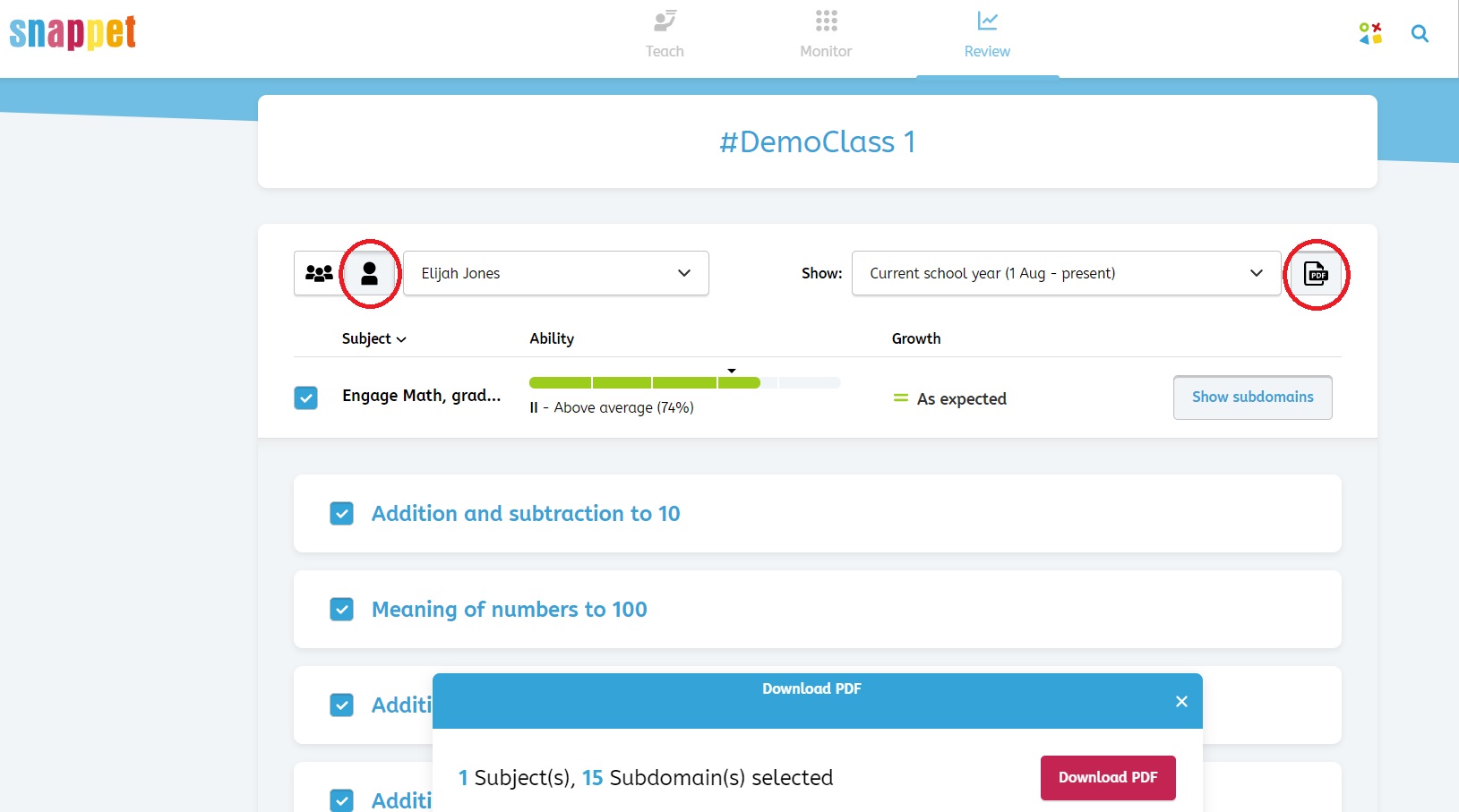
Download report as PDF-file
For each student, you can generate a report with Snappet. This report can also be downloaded as a PDF-file.
The PDF shows the student’s ability level, target level, and growth. At the bottom of the PDF, you see will see the ability levels of the student on all the subdomains you selected. There is also an area where you can leave teacher notes. You can enter these notes in a PDF-file editor.
How to download a report
- Go to the review page and click on the single student icon at the top-left corner. This will open up an individual student’s subjects.
- Click on the PDF button at the top-right corner.
- Select the subjects you want to have included in the report.
- By clicking on ‘Show subdomains’ you can select the subdomains you want to include in the report. All subdomains are selected by default.
- Click on ‘Download PDF’, and the report will be generated.
- The report of the student will be downloaded in your browser. You can save and/or print it out.