Settings
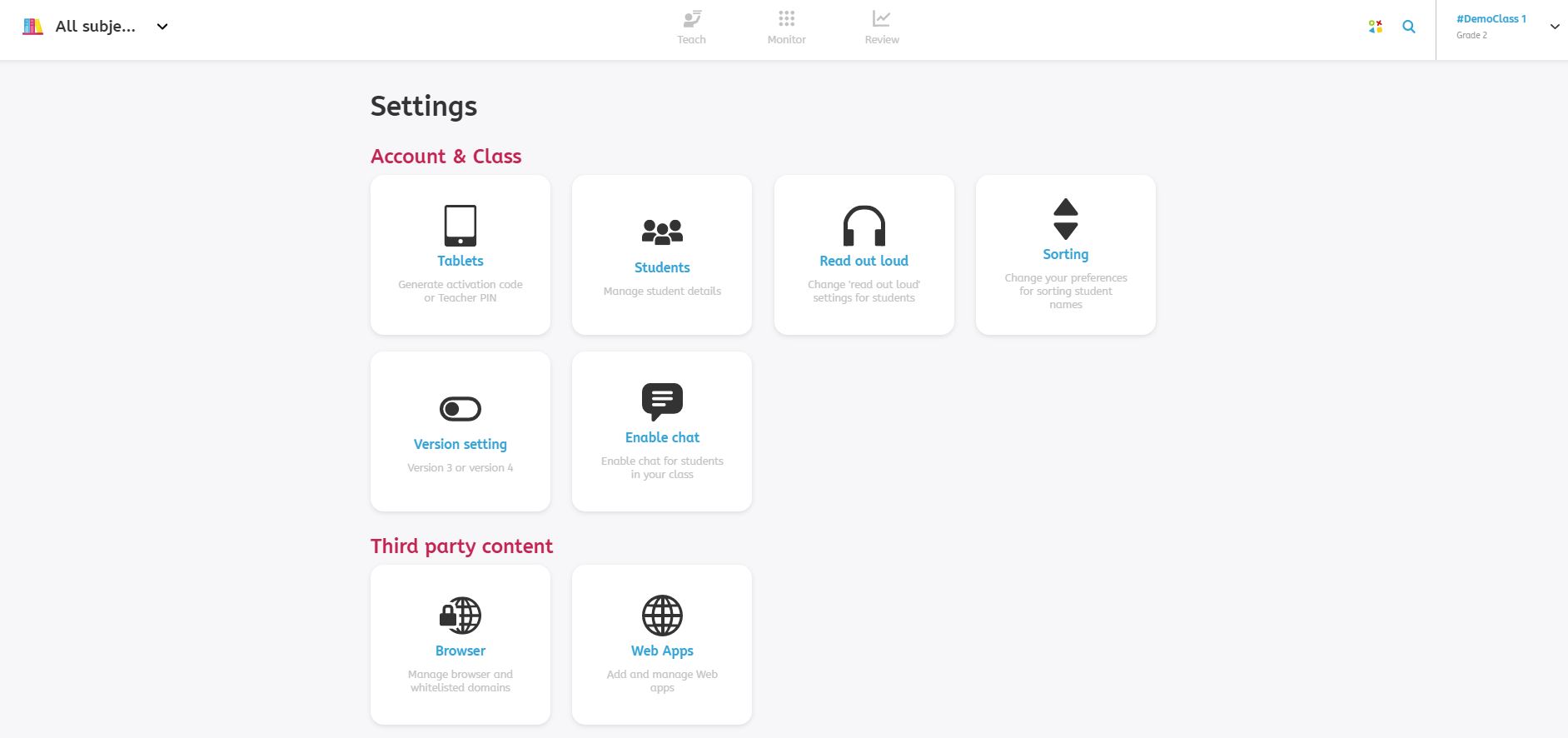
In your dashboard, you are able to change the settings for both the teacher dashboard and your students’ Snappet tablets. Click on your class name at the top right of your dashboard to access the settings page. On this page you can adjust the following settings:
- Tablets: This is where you can generate the activation code or teacher PIN. You need the activation code to link the tablet to a student, and you need the teacher PIN to go to the settings of a tablet.
- Students: This is where you can adjust the names of your students and create student credentials (if they work on their own devices).
- Read out loud: This is where you can activate the read out loud functionality for your students and can adjust the speaking rate.
- Sorting: This is where you can change your preferences for sorting the student names in your dashboard. They can be sorted by first or last name.
- Version Setting: This is where you can change the version of the Teacher dashboard and Student app you are working with.
- Enable chat: This is where you can enable or disable the chat-function for you and your students.
- Browser: This is where you can give students access to the browser on their tablet.
- Webapps: This is where you can add and manage web apps for the tablets of the students.