Teaching with Snappet
Activate subject
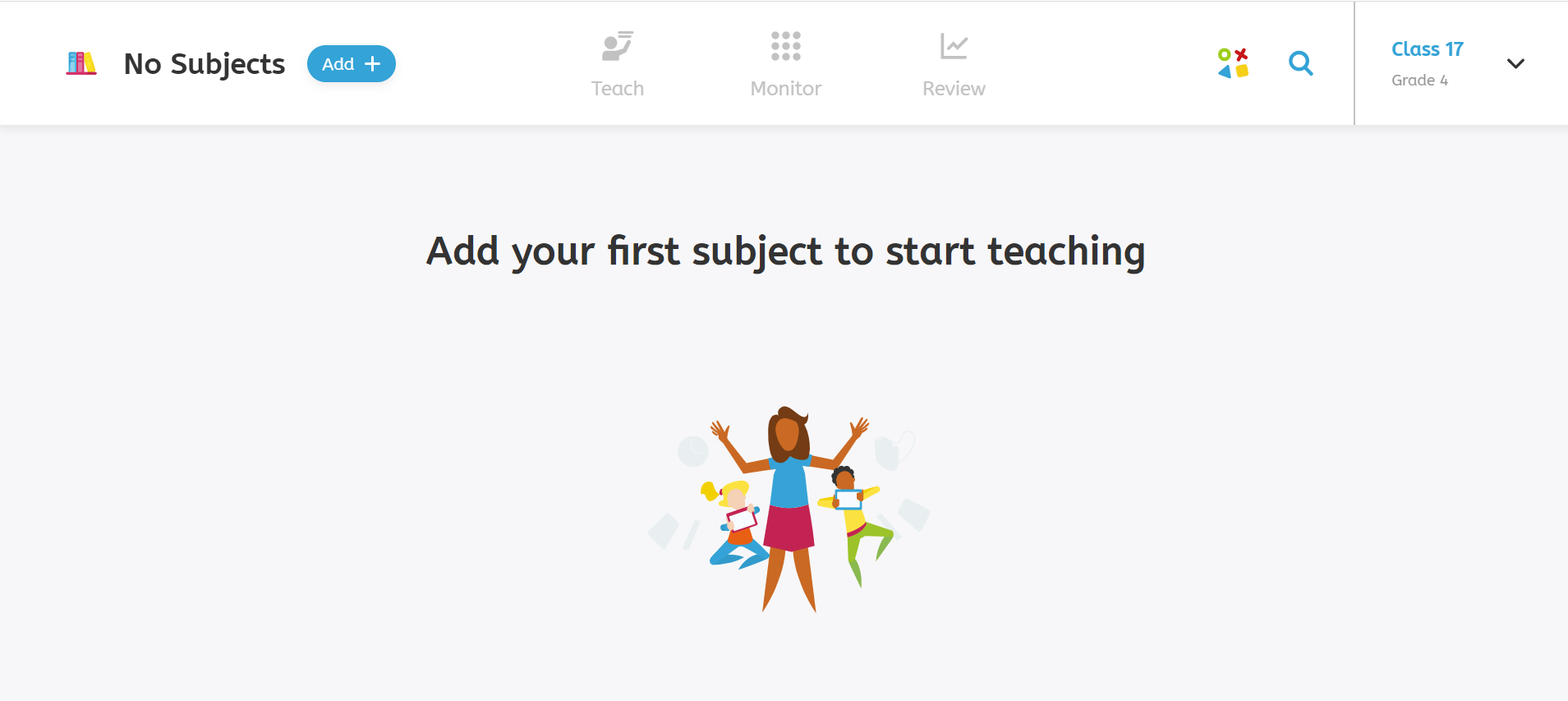
When you log on to your dashboard for the first time, you need to activate your curriculum for this school year. To activate your curriculum, click on Add at the top left in your teacher dashboard. In the window that appears next, you need to take the following steps:
Step 1: Select your subject and click on Next
Step 2: Select the grade of your group and click on Next
Step 3: Select the curriculum (textbook you wish to follow)
Step 4: Select which students should see this subject. Select ‘A custom group of students’ if not all students in your class need to follow this curriculum. Click on Activate subject.
Lesson Plan
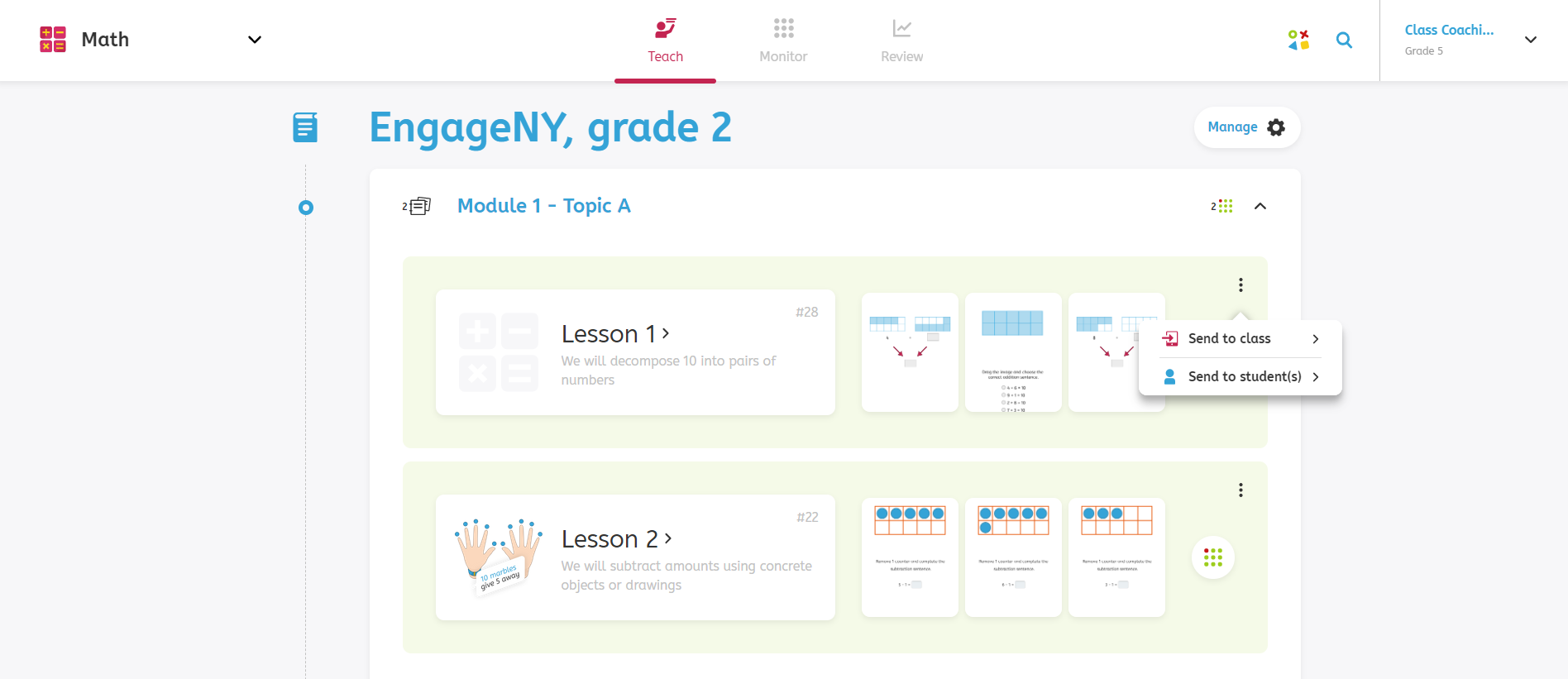
On this page, you will find your lesson plan with all the lessons of your selected curriculum for this school year. If you click on one of the chapters or modules, the lessons for that specific chapter or module will open up. For each lesson, you will immediately see which learning objective is covered. Before teaching, click on the right lesson to go to the lesson preparation page and prepare your lesson.
Learning objective status per lesson
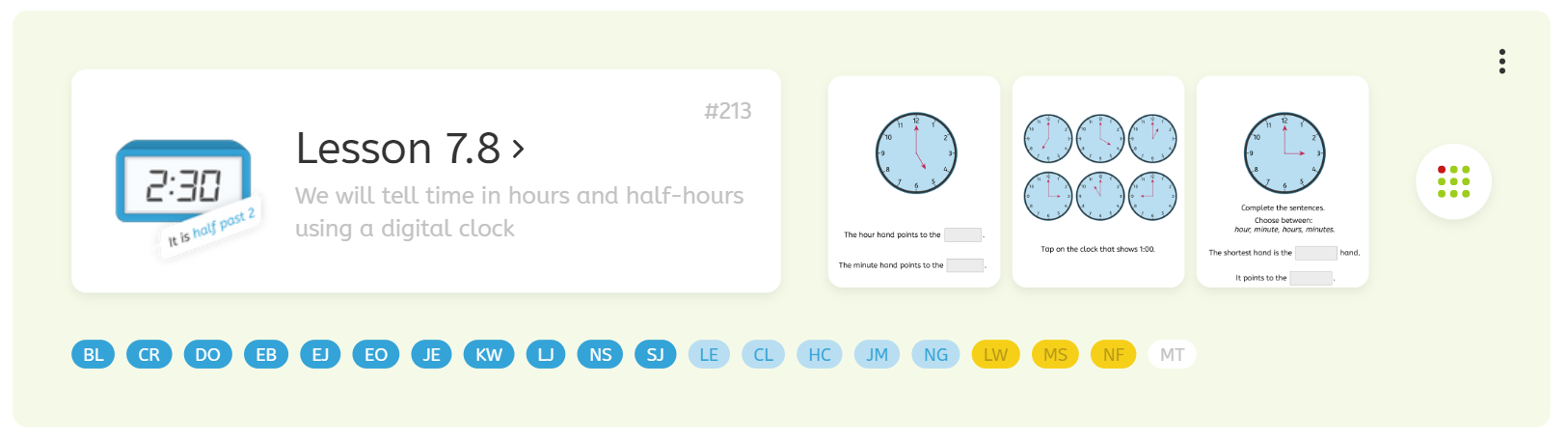
When a student has worked on a learning objective, Snappet will show you the status of that student on that specific learning objective. This status indicates how this student has performed compared to their own personal target level and is visible in the Lesson Plan for every single lesson as a row of squares with your students’ initials. The meaning of the different colors of the squares is as follows:
- Dark blue: the student has reached his/her target on the learning objective of the lesson.
- Light blue: the student is growing towards his/her target on the learning objective of the lesson.
- Yellow: the student is stuck below his/her target level on the learning objective of the lesson.
- White: the student has not been working on the learning objective of the lesson.