Working Sets
If you want your students to have extra practice on learning objectives you already taught, you can assign those learning objectives to the students’ working sets. To switch on the working sets, use the orange toggle switch next to the chapter or topic that you are or have been working on, you assign the learning objectives of that specific chapter or topic to all your students’ working sets. When you have your students work in their working sets, they are able to keep practicing independently with adaptive exercises on the learning objectives you assigned to them. For example, you can let your students work in their working sets when they have finished their lesson or when you are reviewing a chapter.

Working sets in the student app
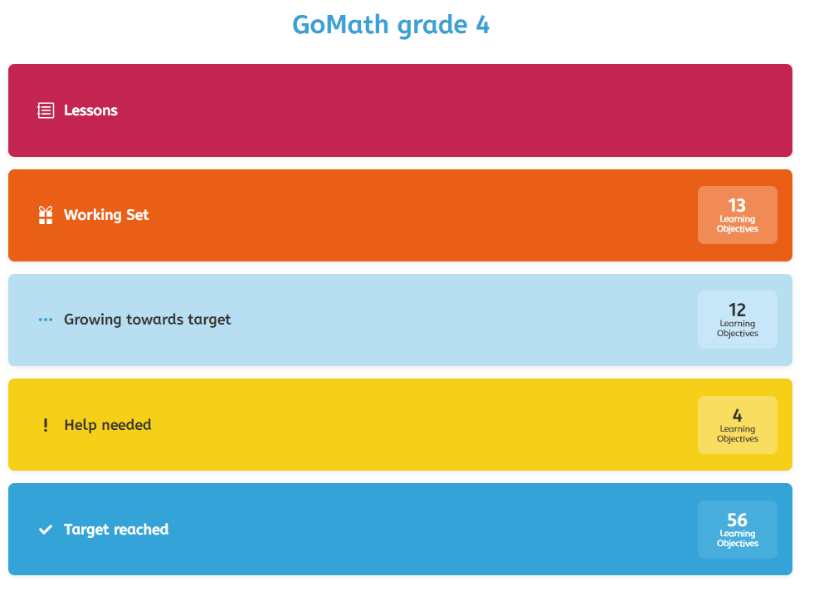
Students are able to work in their working sets by navigating to the orange working set bar in their student app (see image below). When students select a learning objective, they can work independently on exercises that are adapted to their own level. Students are only able to practice on the learning objectives for which you have already taught a lesson.
Monitoring the working sets
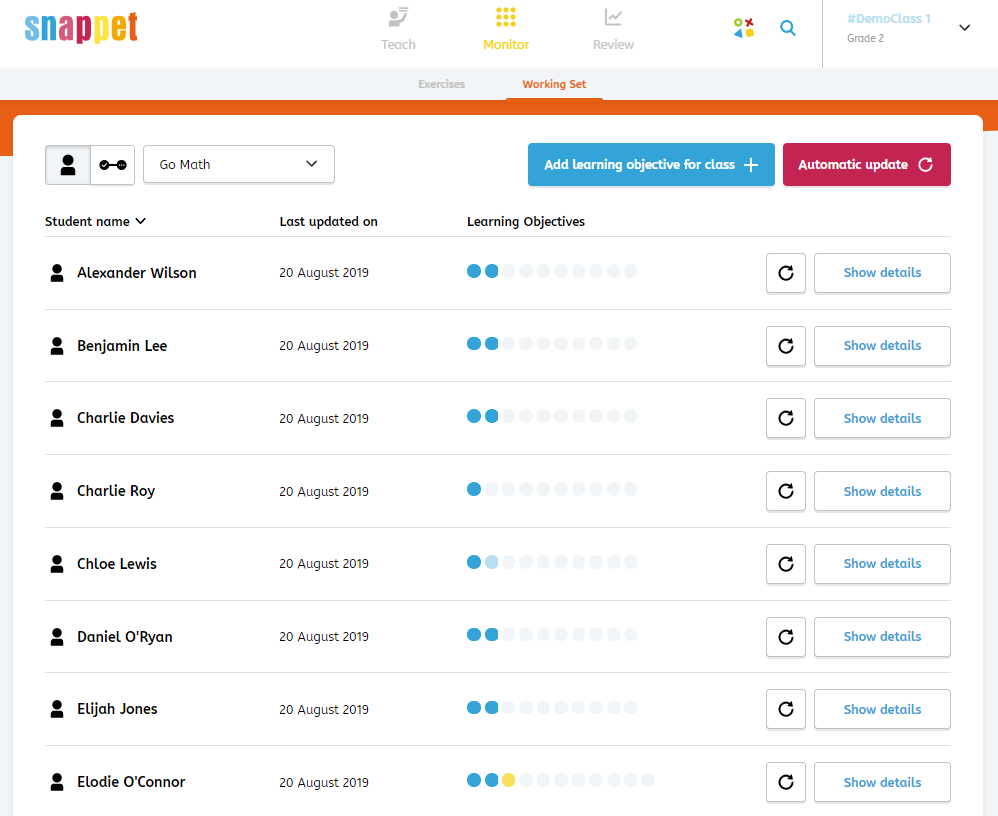
In the monitoring page, you will see a Working set submenu. This page can be used to monitor the status of your students on the learning objectives in their working set. You can use this page to monitor their progress; you can easily see whether they have reached their target (dark blue dot), still need to grow towards their target (light blue dot), need help (yellow dot) or have not done enough exercises (grey dot). This page also allows you to add additional learning objectives to the working set of specific students.