Online instruction with Snappet
Teachers are constantly looking for ways to keep improving their remote teaching and sharing best practices among teachers can be an excellent way to achieve this. Below are some tips from Snappet teachers to improve your online lesson instruction using Snappet’s instruction tool. It offers you all the tools and exercises you need for an effective instruction.
Tips and tricks for your online instruction meeting
- Pick a fixed time to start the day and communicate this with your students and their parents/caretakers.
- Use platforms such as Google Classroom or Microsoft Teams to communicate with your students.
- Share your screen with your students and teach them how to mute and unmute their microphones.
- Start at a fixed time and record your instruction so you can share the video with students who missed it.
- Decide which students need a small-group instruction before you start teaching your lesson. Ask these students to stay a little longer for a small-group instruction.
- Keep communicating with your students when they are working independently using Snappet’s chat feature.


What tools can I use in Snappet's instruction tool?
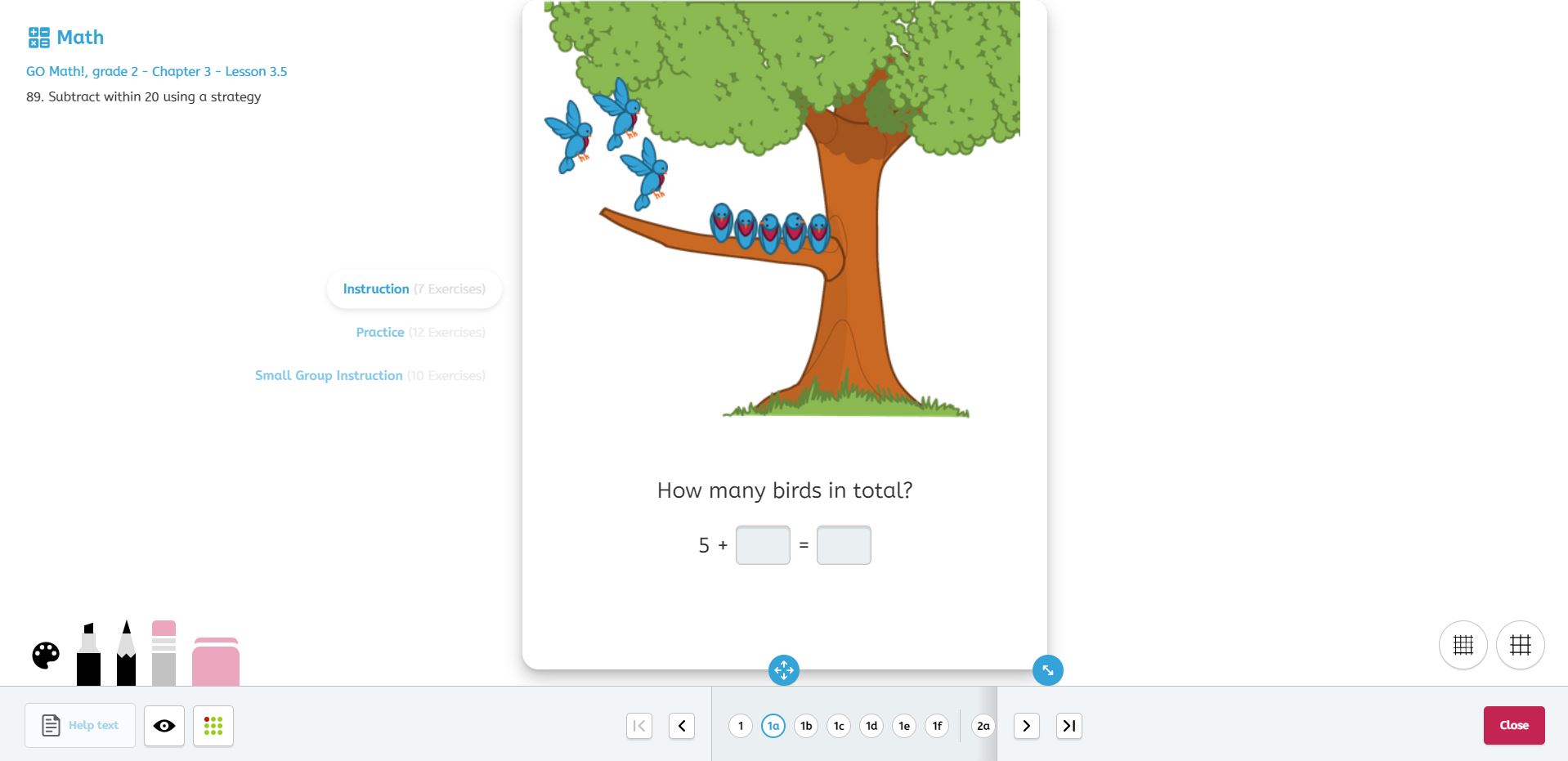
With the instruction tool, you are able to share the exercises for your instruction on your screen. At the bottom of the screen, you can navigate through all the exercises of that lesson. There are some additional tools to support you in your instruction:
At the bottom left:
- The pencils and erasers. These can be used to write next to the exercises. This can help you model the work for your students.
- The eagle eye. This shows you the correct answer of that exercise.
- The monitoring button (icon with the nine dots). This shows a small screen with your students’ answers on the instruction exersices. Use this screen to monitor your students’ answers if you let them follow along in their Snappet student app. Click on the monitoring button again, to hide the screen.
At the bottom right:
- The grids. These can be used as background.
- The ‘Close ‘-button. This closes the instruction tool.
What exercises can I use for my instruction?
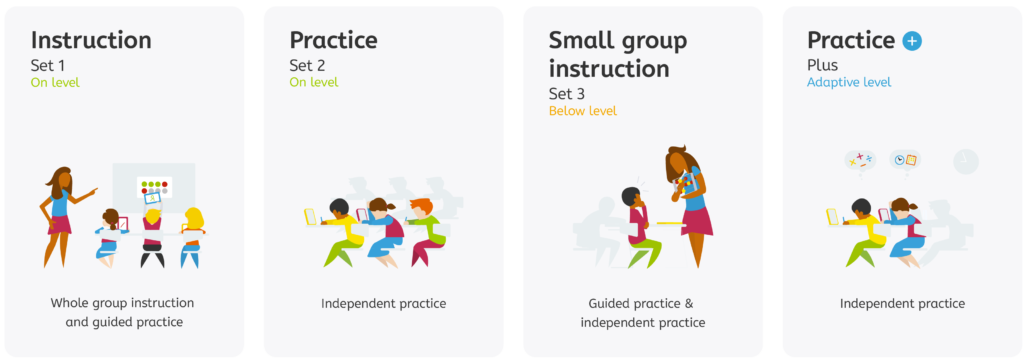
Each lesson in Snappet has the same lesson structure. You can use the exercises of the ‘Instruction’ set (Set 1) for your whole-group instruction and guided practice, even remotely.