Lessons
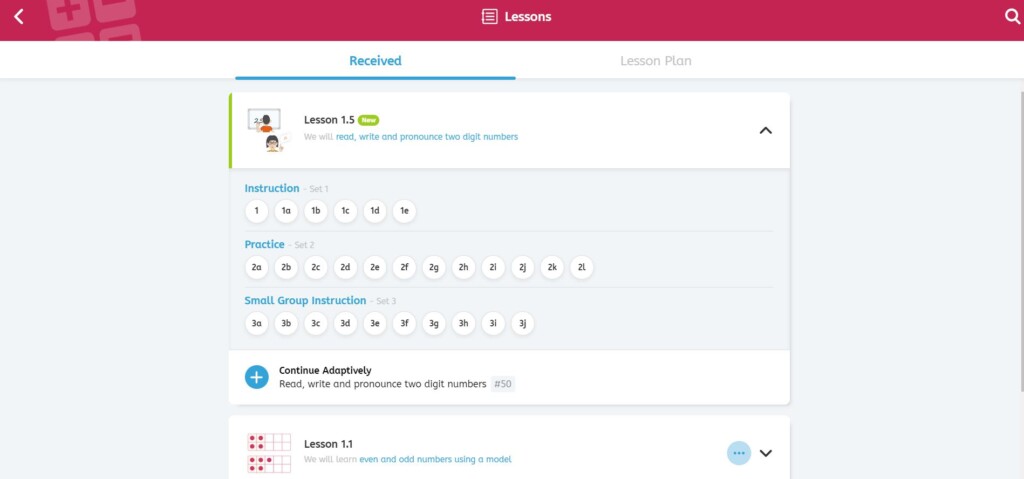
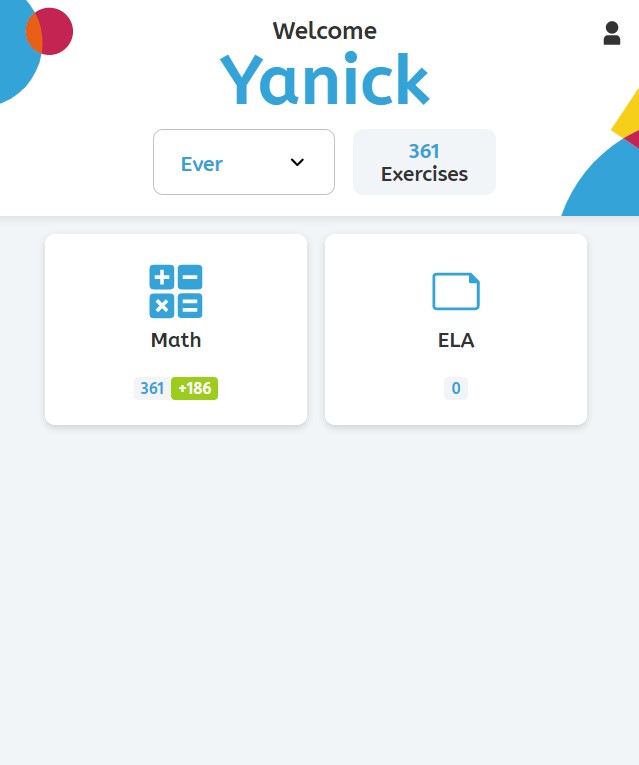
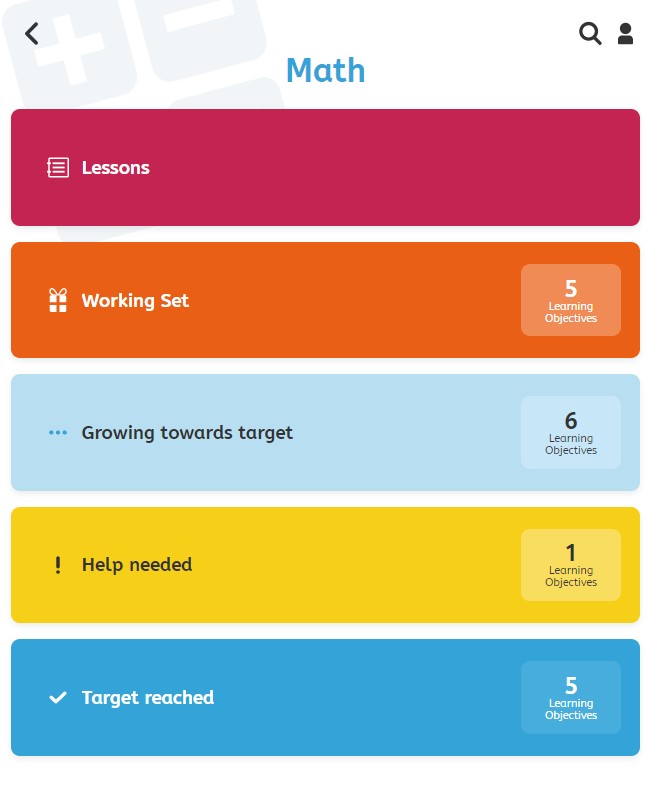
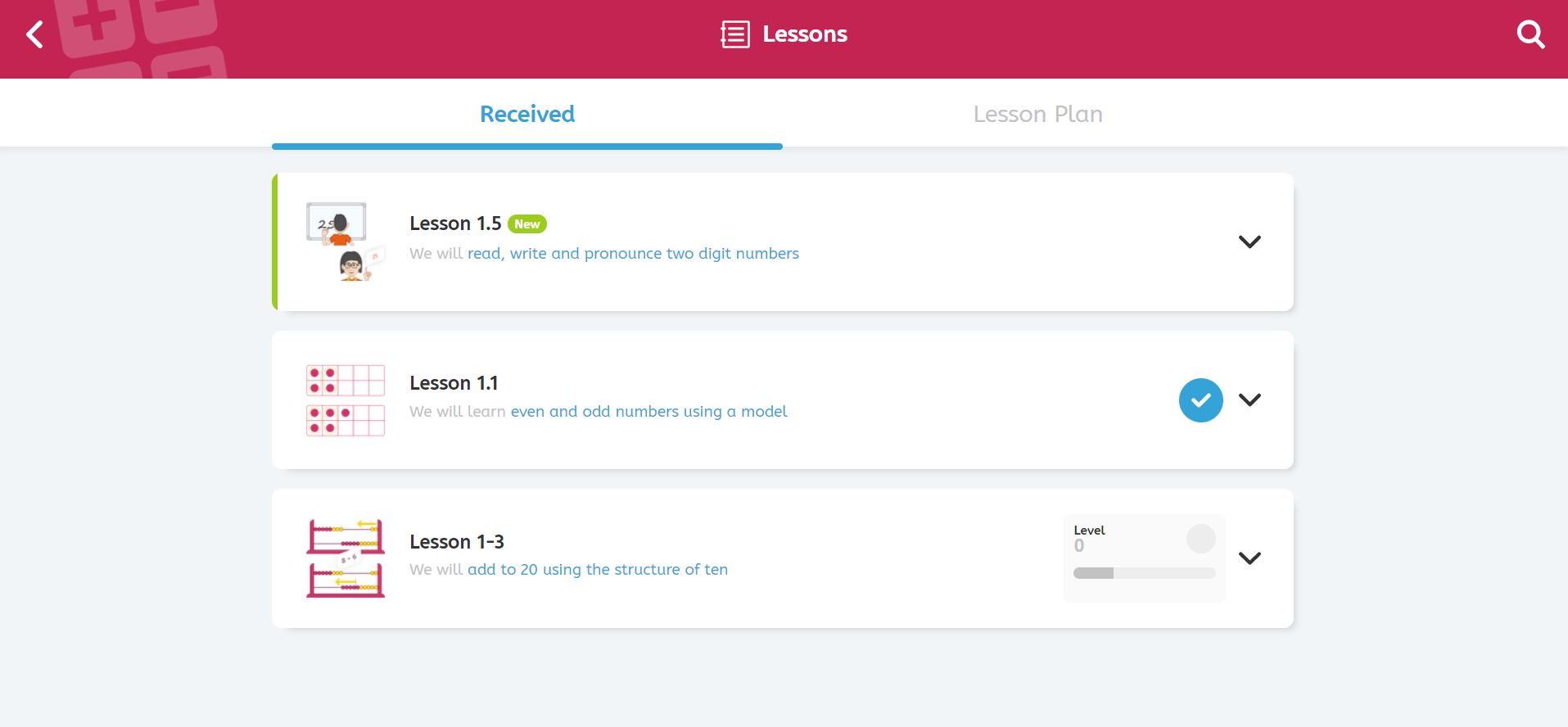
To access the lesson content, student have to select their subject and then click on ‘Lessons’.
Received lessons and lesson plan
In the lesson page, students have two options: ‘Received’ and ‘Lesson Plan’. In the ‘Received’ page, students will find the lessons that were sent to them by the teacher. The lesson that was most recently sent, will always appear at the top. In the ‘Lesson Plan’ page, students will find the lessons that are visible in the lesson plan of the curriculum. By default all lessons are visible in the lesson plan of the students.
The student sees their level and status for each learning objective. The level shows the student his current ability on the learning objective. Level 1 is the lowest level and level 5 is the highest level. If the level is still unknown, it shows level 0.
Exercises
Below you will find an example of an exercise. To enter an answer for an exercise, students click on the answer field. A keyboard will appear on the Snappet tablet for typing the answer. To submit the answer, students need to click on the arrow at the bottom right of the exercise.

Students will receive immediate feedback on how they did on the exercise. When students answer an exercise correctly, they will see a check and will automatically be forwarded to the next exercise. When students answer an exercise incorrectly, they will see a red stripe and get to chance to correct themselves on the same exercise. A student will always get a second attempt. When the second attempt is also incorrect, the student will be forwarded to the next exercise. If students work on a test in Snappet they will not receive immediate feedback, and they will always continue to the next exercise directly.
Progress

While working on a lesson, students see their progress at the top of their screen. There are five options: a green dot, a red dot, a green dot which is also partially red, a blue dot and a dot with a question mark. A green dot means that the exercise was done correctly on the first attempt, a red dot means that the exercise was done incorrectly and has not been corrected and a green dot which is also partially red means that the exercise was done incorrectly on first attempt, but corrected later. A blue dot means that exercise has to be checked by the teacher. A dot with a question mark means that the exercise was skipped.
As soon as a student has done a sufficient number of exercises (approximately 25 exercises per learning objective), Snappet is able to show the student’s progress on each exercise. This progress is shown with positive and negative growth points. These growth points are also shown to the student. When a student answers an exercise on or just above his/her own average level correctly, he/she receives positive growth points. This leads to an increase in the student’s ability level. When a student answers an exercise incorrectly, he/she receives negative growth points. This leads to a reduction in the student’s ability level. When a student is working on adaptive exercises, Snappet will always provide a student with exercises adapted to that student’s ability level.
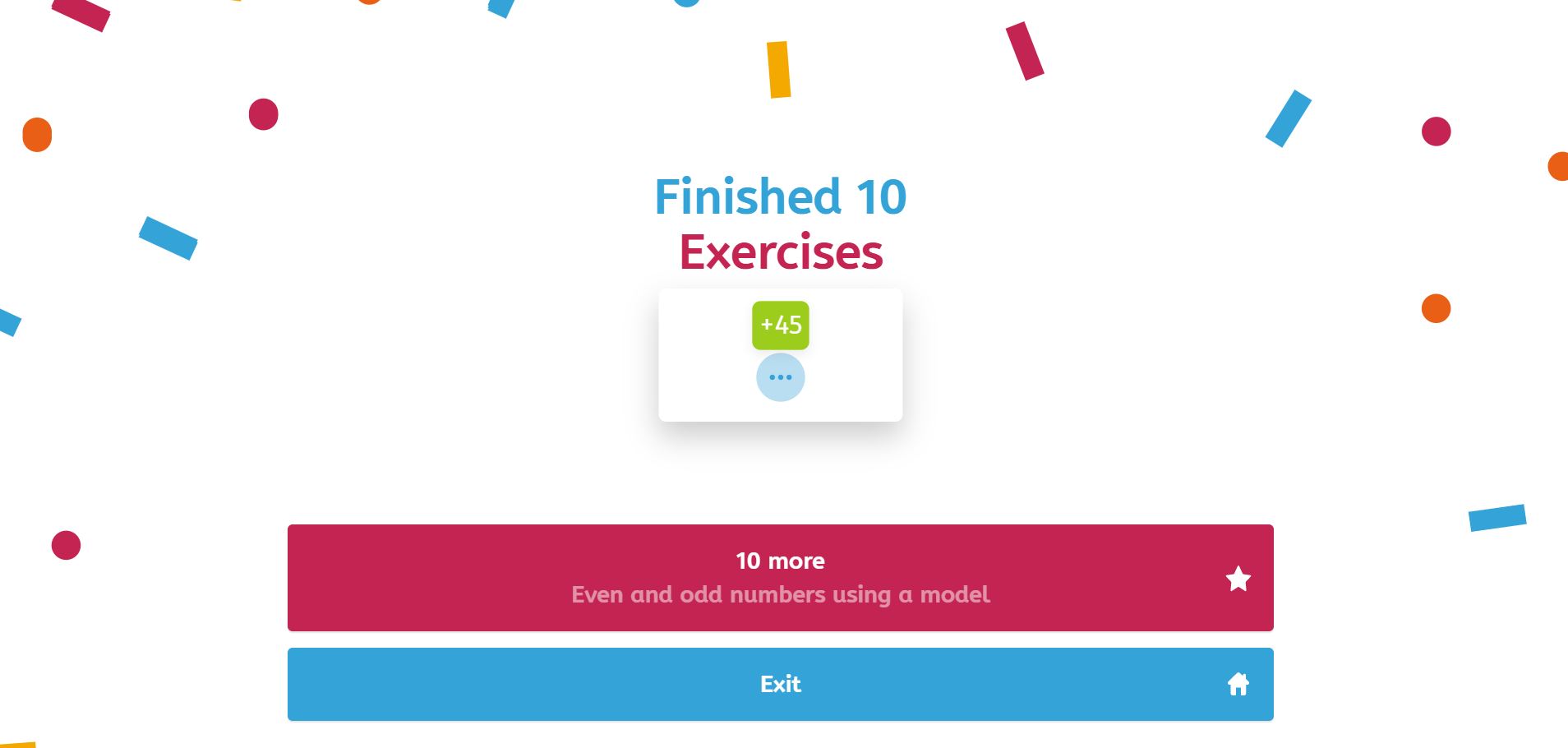
The progress and status of the learning objective, compared to the students’ level, is shown after finishing a set of exercises.
Plus
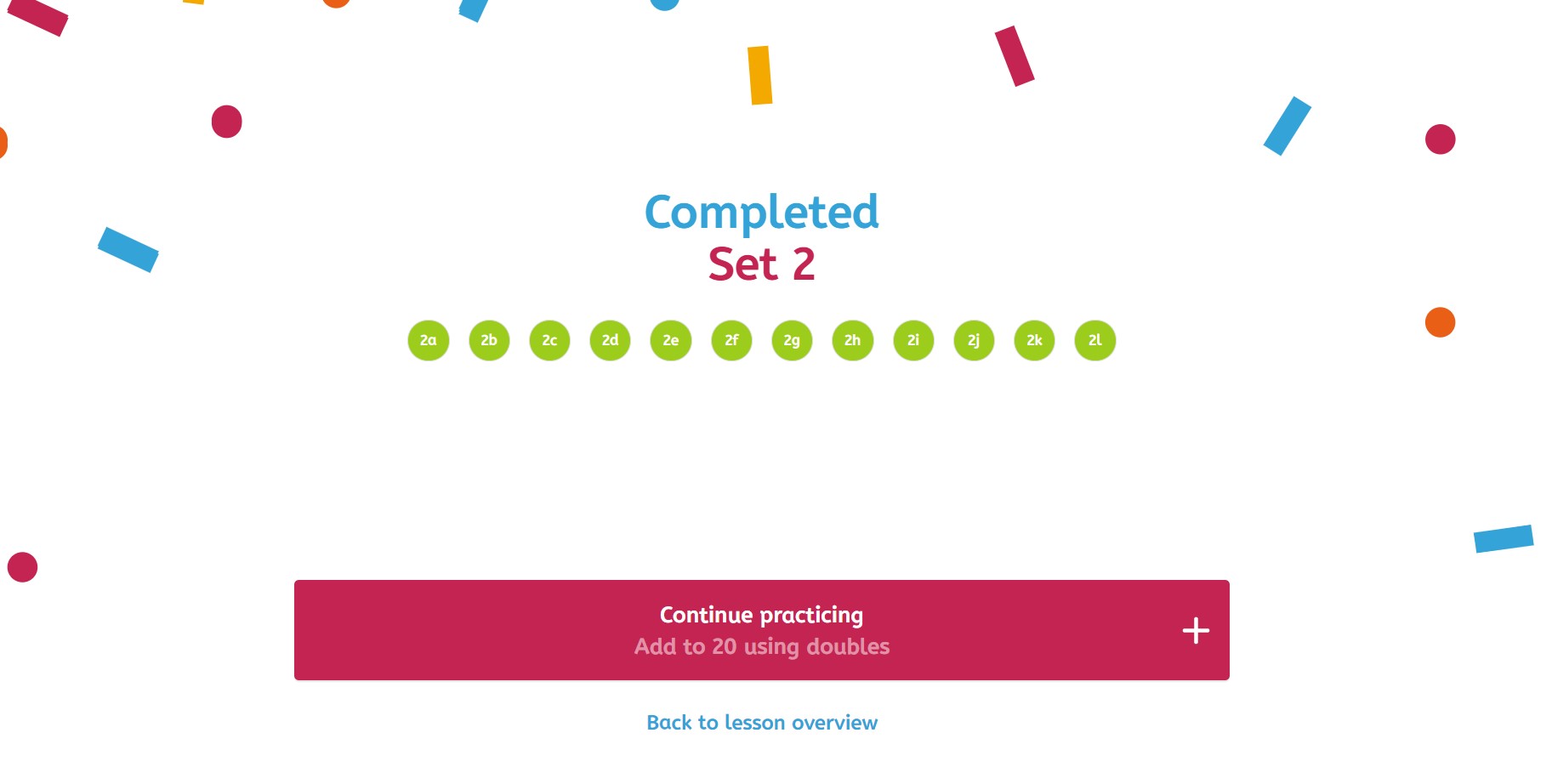
When students are done with Set 2 exercises they continue practicing adaptively in the plus section. To get to the plus exercises, students can click on the blue plus sign below the set of exercises or click on continue practicing after finishing the Set 2 exercises. The students will be provided with exercises on the same learning objective that pertains to the lesson, but these exercises will be adapted to the student’s own level.